Multi-GPU Setup Guide for Running Large Local LLMs in 2026
Hit the VRAM wall? This guide covers everything you need to run 70B–405B parameter models locally across multiple GPUs — specific hardware combos, NVLink vs PCIe, software setup, and a clear decision framework to avoid over-buying.
Compute Market Team
Our Top Pick
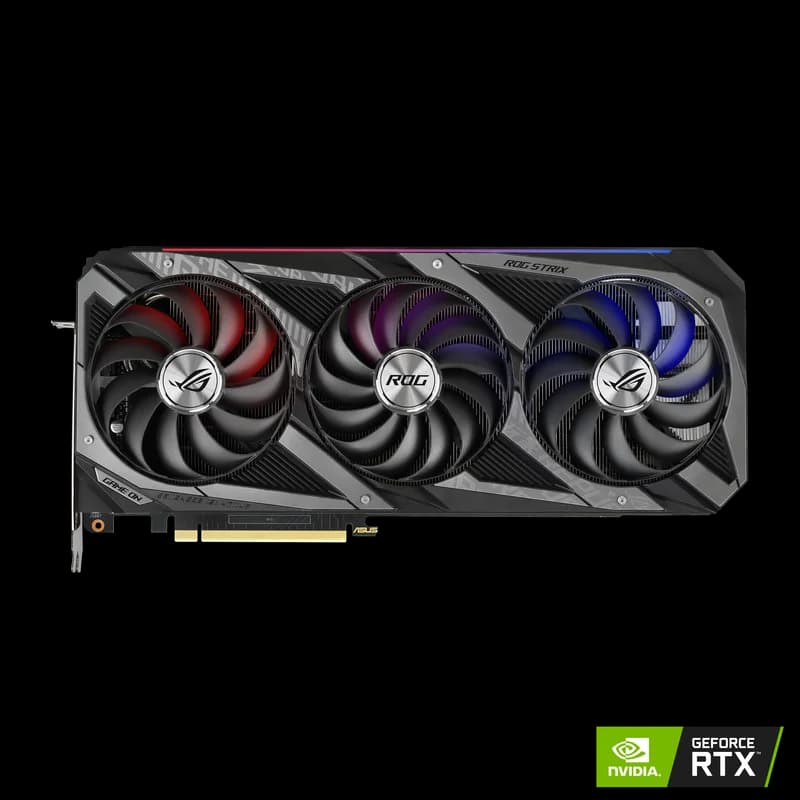
You bought an RTX 4090. You installed Ollama. You ran Llama 3 8B at 60+ tokens per second and felt like a wizard. Then you tried loading Llama 3 70B and hit the wall: "out of memory."
That wall is VRAM, and it's the single biggest constraint in local AI. A 70B parameter model at Q4 quantization needs roughly 40GB of VRAM — more than any single consumer GPU offers. A 405B model? That's 200GB+. No consumer card comes close.
The solution is multi-GPU: spreading your model across two or more graphics cards to pool their VRAM. It works, it's well-supported by modern software, and it's far cheaper than renting cloud compute for always-on inference. But the details matter — wrong GPU pairing, wrong interconnect, or wrong software configuration will waste your money.
This guide gives you the exact hardware combinations, benchmarks, and software setup to go multi-GPU in 2026. No filler, no speculation — just the configs that actually work, with buy links for everything. If you're still choosing your first GPU, start with our best GPU for AI guide instead.
Why Go Multi-GPU? The VRAM Wall Explained
Every LLM has a minimum VRAM requirement determined by its parameter count and quantization level. Here's the reality for today's most popular open-weight models:
| Model | Parameters | FP16 VRAM | Q4 VRAM | Single GPU? |
|---|---|---|---|---|
| Llama 3 8B | 8B | 16GB | ~5GB | Yes (any 8GB+ GPU) |
| Qwen 2.5 32B | 32B | 64GB | ~18GB | Yes (24GB GPU) |
| Llama 3 70B | 70B | 140GB | ~40GB | No — needs 2+ GPUs |
| DeepSeek R1 (dense) | 70B | 140GB | ~40GB | No — needs 2+ GPUs |
| Llama 4 Maverick | 400B (40B active) | ~800GB | ~220GB | No — needs 3+ GPUs |
| Llama 3.1 405B | 405B | 810GB | ~230GB | No — needs enterprise |
The pattern is clear: once you pass 32B dense parameters, you're out of single-GPU territory. Even the RTX 5090 ($1,999 – $2,199) with its 32GB GDDR7 can only handle models up to about 32B parameters at comfortable quantization. For the 70B+ models that are becoming the standard for serious local AI work, multi-GPU is the only consumer-grade option.
If you need a refresher on how VRAM requirements work, our VRAM guide breaks it down in detail.
Multi-GPU Methods — Tensor Parallelism vs. Model Splitting
There are two primary ways to spread a model across multiple GPUs. Understanding the difference determines which hardware and software you'll need.
Tensor Parallelism
Tensor parallelism splits individual layers across GPUs. Each GPU holds a slice of every layer and they work together on each token simultaneously. This requires constant, high-bandwidth communication between cards — making it ideal for NVLink-connected setups.
Best for: Matched GPU pairs with fast interconnects. Used by vLLM and production inference servers.
According to vLLM's distributed serving documentation, tensor parallelism delivers near-linear scaling on models that exceed single-GPU VRAM: "Tensor parallelism splits the model across GPUs such that each GPU processes a slice of every layer, achieving effective scaling when inter-GPU bandwidth is sufficient."
Pipeline Parallelism (Layer Splitting)
Pipeline parallelism assigns sequential layers to different GPUs. GPU 0 processes layers 1–40, GPU 1 processes layers 41–80. The output of one GPU feeds into the next. This works well over slower interconnects like PCIe because communication only happens between layers, not within them.
Best for: Mixed GPU setups, PCIe-only configurations, consumer hardware. Used by llama.cpp's --tensor-split flag (which, despite the name, performs pipeline-style layer distribution).
Performance Expectations
"On consumer hardware with PCIe interconnects, expect roughly 1.4–1.6× the performance of a single GPU when adding a second card," notes Georgi Gerganov, creator of llama.cpp. "The bottleneck is inter-GPU bandwidth — NVLink can push this closer to 1.8×, but you'll never hit a perfect 2× due to synchronization overhead."
In practice, multi-GPU is primarily about running models that don't fit on one card, not about raw speed improvement. If your model fits on a single GPU, a single card is almost always faster than splitting it across two.
NVLink vs. PCIe — Which Interconnect Do You Need?
The interconnect between your GPUs is the most misunderstood aspect of multi-GPU setups. NVLink and PCIe behave very differently for VRAM pooling — here's the definitive breakdown.
| Interconnect | Bandwidth | VRAM Pooling | Available On |
|---|---|---|---|
| NVLink (RTX 3090) | 112.5 GB/s | Yes (48GB unified) | RTX 3090 only (consumer) |
| NVLink (A100/H100) | 600–900 GB/s | Yes | Enterprise GPUs |
| PCIe 4.0 x16 | 32 GB/s | No (software split) | RTX 30/40 series |
| PCIe 5.0 x16 | 64 GB/s | No (software split) | RTX 50 series |
The Critical Fact: Consumer NVLink Died After RTX 3090
NVIDIA removed NVLink from the RTX 40-series and RTX 50-series consumer GPUs. The RTX 3090 ($699 – $999) is the last consumer NVIDIA GPU with NVLink support. This is why the RTX 3090 remains a top recommendation for multi-GPU local AI — it's the only consumer card where you can get true VRAM pooling.
Be precise about what the bridge does, because it is widely overstated. NVLink is a high-bandwidth link between the two cards — roughly 112 GB/s, against about 64 GB/s over PCIe 4.0 x16 — not a transparent 48GB address space. Frameworks still have to split the model across both cards deliberately; what NVLink buys you is cheaper communication while they do it, which is why it matters for tensor-parallel inference and fine-tuning and barely matters for running two separate models side by side.
Does PCIe Multi-GPU Actually Work?
Yes, and well. For LLM inference specifically, PCIe bandwidth is sufficient because the communication pattern is relatively simple: layer outputs pass sequentially from one GPU to the next. The bottleneck appears primarily during the prefill phase (processing your initial prompt), where you'll see higher time-to-first-token. During generation (outputting tokens one at a time), PCIe bandwidth is rarely the limiting factor.
According to benchmarks shared on r/LocalLLaMA, dual RTX 4090s over PCIe 4.0 running Llama 3 70B Q4 achieve approximately 85–90% of the tokens-per-second that the same model gets on NVLink-connected A100s with equivalent total VRAM. The gap widens with training workloads, but for inference, PCIe is perfectly viable.
Best GPU Combinations for Multi-GPU Local AI
Here are the four best multi-GPU configurations in 2026, tested and validated by the local AI community. For single-GPU comparisons before committing to multi-GPU, see our RTX 5090 vs 4090 breakdown.
Budget King: Dual RTX 3090 with NVLink (~$1,400–$2,000)
| Spec | Dual RTX 3090 |
|---|---|
| Combined VRAM | 48GB GDDR6X (NVLink pooled) |
| Interconnect | NVLink @ 112.5 GB/s |
| Cost | ~$1,400–$2,000 (2× RTX 3090 at $699 – $999 each) |
| Power Draw | ~700W combined |
| Llama 3 70B Q4 | ~14–16 tok/s |
| Best For | 70B models on a budget |
Why it works: 48GB of combined VRAM across two cards clears a 70B model at Q4, and the NVLink bridge keeps the cost of moving activations between them low (~112 GB/s versus ~64 GB/s over PCIe 4.0 x16). The split is still done in software — llama.cpp, vLLM and the rest shard the model across both cards deliberately; NVLink makes that sharding cheap rather than unnecessary. It remains the most cost-effective path to running 70B parameter models locally in 2026.
Hardware notes: Both cards need to be identical RTX 3090s (not 3090 Ti — Ti dropped NVLink). You'll need an NVLink bridge (~$40–$80), a motherboard with two PCIe x16 slots spaced correctly, and at minimum a 1000W PSU. The RTX 3090 runs hot in dual config — blower-style cards handle thermals better than open-air coolers when stacked.
For a deeper look at why the RTX 3090 remains relevant, see our RTX 3090 vs 4090 comparison.
Performance: Dual RTX 4090 over PCIe (~$3,200–$4,000)
| Spec | Dual RTX 4090 |
|---|---|
| Combined VRAM | 48GB GDDR6X (software split) |
| Interconnect | PCIe 4.0 @ 32 GB/s |
| Cost | ~$3,200–$4,000 (2× RTX 4090 at $1,599 – $1,999 each) |
| Power Draw | ~900W combined |
| Llama 3 70B Q4 | ~20–24 tok/s |
| Best For | Fastest 70B inference, mixed workloads |
Why it works: Despite lacking NVLink, the RTX 4090's raw compute power (16,384 CUDA cores, 4th-gen tensor cores) means each GPU processes its assigned layers significantly faster than an RTX 3090. The PCIe bottleneck is real but acceptable for inference — generation speed is 30–50% faster per token than dual 3090s. For a direct single-card comparison, see our RTX 4090 vs RTX 3090 breakdown.
Hardware notes: RTX 4090s are massive — triple-slot cards that require significant case clearance. A full-tower case or Supermicro GPU server chassis ($8,000 – $15,000 barebones) gives you the space. Minimum 1200W PSU, and ensure your motherboard runs both slots at x8 or better.
Maximum Consumer: RTX 5090 + RTX 4090 (56GB Combined)
| Spec | RTX 5090 + RTX 4090 |
|---|---|
| Combined VRAM | 56GB (32GB + 24GB, software split) |
| Interconnect | PCIe 4.0/5.0 @ 32–64 GB/s |
| Cost | ~$3,600–$4,200 (RTX 5090 $1,999 – $2,199 + RTX 4090 $1,599 – $1,999) |
| Power Draw | ~1,025W combined |
| Llama 3 70B Q4 | ~18–22 tok/s |
| Best For | Maximum consumer VRAM, 70B at higher quant |
Why it works: Mixed-generation GPU setups work with llama.cpp's --tensor-split flag, which distributes layers proportionally based on each GPU's VRAM. The 56GB total lets you run 70B models at Q6 or even Q8 quantization — significantly better quality than Q4. This is the most VRAM you can get from two consumer GPUs in 2026. See our RTX 5090 vs RTX 4090 comparison for single-card benchmarks if you're deciding between the two before committing to a mixed pair.
Hardware notes: Use --tensor-split 57,43 in llama.cpp to assign ~57% of layers to the 5090 and ~43% to the 4090, matching their VRAM ratio. The RTX 5090 needs PCIe 5.0 to reach full bandwidth, so pair with a PCIe 5.0 motherboard. 1600W PSU required — the 5090 alone draws 575W.
Enterprise: Dual A100 80GB with NVLink (160GB Combined)
| Spec | Dual A100 80GB |
|---|---|
| Combined VRAM | 160GB HBM2e (NVLink pooled) |
| Interconnect | NVLink @ 600 GB/s |
| Cost | ~$24,000–$30,000 (2× A100 80GB at $12,000 – $15,000 each) |
| Power Draw | ~600W combined |
| Llama 3.1 405B Q4 | ~8–10 tok/s |
| Best For | 405B models, production inference, fine-tuning |
Why it works: When you need to run Llama 3.1 405B or fine-tune 70B models, there's no consumer shortcut. 160GB of NVLink-pooled HBM2e handles the full 405B model at Q4 quantization with room for KV cache. The A100's 3rd-gen tensor cores and 2,039 GB/s memory bandwidth per card deliver consistent production-grade throughput.
Hardware notes: Requires a workstation or server with NVLink bridge support — the Supermicro SYS-421GE-TNRT ($8,000 – $15,000 barebones) supports up to 8 GPUs with NVLink. Enterprise-grade cooling is mandatory. For most individuals and small businesses, consider whether cloud APIs at $0.01–$0.03/1K tokens might be more economical for 405B workloads.
Building Your Multi-GPU Rig — Hardware Checklist
Multi-GPU is unforgiving if you get the supporting hardware wrong. Here's what you need beyond the GPUs themselves.
Motherboard
Your motherboard must have two or more PCIe x16 slots with adequate physical spacing. Most consumer GPUs are 2.5–3 slots wide, so you need at least 3 slots of clearance between the first and second x16 positions. Check your motherboard's PCIe lane allocation — many boards run the second x16 slot at x8 when two GPUs are installed. For PCIe-based multi-GPU (RTX 40/50 series), x8 per slot is acceptable; for NVLink (RTX 3090), both slots should run at x16.
Recommended platforms: AMD TRX50 (Threadripper) for maximum PCIe lanes, or Intel LGA 1851 (Z890) for a mainstream option with two x16 slots.
Power Supply
| GPU Configuration | GPU Power | System Total | Recommended PSU |
|---|---|---|---|
| Dual RTX 3090 | 700W | ~900W | 1000W minimum |
| Dual RTX 4090 | 900W | ~1,100W | 1200W minimum |
| RTX 5090 + RTX 4090 | 1,025W | ~1,250W | 1600W recommended |
| Dual A100 80GB | 600W | ~800W | 1000W minimum |
Always buy a PSU rated 20–30% above your expected draw. Multi-GPU systems experience transient power spikes that can trip undervolt protections on marginal PSUs. Stick with 80+ Titanium or Platinum rated units from Corsair, Seasonic, or be quiet!.
Storage
Large models need fast storage for loading. A Llama 3 70B Q4 model file is approximately 40GB — that's 5.4 seconds to load from a Samsung 990 Pro NVMe ($289 – $339) at 7,450 MB/s sequential read, versus 40+ seconds from a SATA SSD. If you're swapping between multiple large models, NVMe isn't optional — it's required.
For centralized model storage across multiple machines, a Synology DS1821+ NAS ($949 – $1,099) with 10GbE expansion keeps your model library accessible from any rig on your network.
Cooling
Dual GPUs in a standard case create serious thermal challenges. The bottom card's exhaust becomes the top card's intake. Solutions:
- Blower-style coolers: Exhaust heat out the back of the case rather than recirculating. Louder but far better for stacked GPUs.
- Open-air test bench: Mount GPUs on an open frame for maximum airflow. Ugly but thermally optimal.
- 4U rackmount server: Purpose-built for multi-GPU with engineered airflow paths. The Supermicro chassis handles up to 8 double-width GPUs.
- Minimum 3-slot spacing: If using open-air cooler cards, leave at least one empty slot between GPUs for intake air.
Software Setup — Running LLMs Across Multiple GPUs
The software side of multi-GPU is surprisingly straightforward in 2026. Every major local AI framework supports it. For a complete guide to getting started with local LLM inference, see our guide to running LLMs locally.
llama.cpp — The Universal Option
llama.cpp is the most flexible tool for multi-GPU inference. Georgi Gerganov's llama.cpp project supports automatic GPU detection and manual layer distribution:
# Automatic: distribute all layers across available GPUs
./llama-server -m llama-3-70b-q4.gguf --n-gpu-layers 99

# Manual: split layers 60/40 between GPU 0 and GPU 1
./llama-server -m llama-3-70b-q4.gguf --n-gpu-layers 99 --tensor-split 60,40

# Mixed GPU example: RTX 5090 (32GB) + RTX 4090 (24GB)
./llama-server -m llama-3-70b-q4.gguf --n-gpu-layers 99 --tensor-split 57,43
The --tensor-split flag accepts ratios that control how model layers are distributed. Set the ratio proportional to each GPU's available VRAM for optimal utilization.
Ollama — Automatic Detection
Ollama handles multi-GPU automatically in most cases. When it detects multiple NVIDIA GPUs, it distributes model layers across them without manual configuration:
# Just run — Ollama auto-detects and splits across GPUs
ollama run llama3:70b-instruct-q4_K_M

# Verify GPU allocation
ollama ps
Ollama's automatic splitting works well for identical GPU pairs. For mixed GPUs, llama.cpp gives you more control over the distribution ratio.
vLLM — Production Tensor Parallelism
For production serving with maximum throughput, vLLM offers true tensor parallelism:
# Tensor parallelism across 2 GPUs
python -m vllm.entrypoints.openai.api_server   --model meta-llama/Llama-3-70B   --tensor-parallel-size 2   --gpu-memory-utilization 0.90
vLLM requires matched GPUs (same model, same VRAM) for tensor parallelism. It delivers higher throughput than llama.cpp for concurrent requests but uses more VRAM for its PagedAttention KV cache. Best suited for serving multiple users or running local AI agents that make many parallel requests.
ExLlamaV2 — Optimized Multi-GPU
ExLlamaV2 provides native multi-GPU support with excellent memory efficiency for GPTQ and EXL2 quantized models:
# ExLlamaV2 with GPU split
python server.py --model_dir ./Llama-3-70B-EXL2 --gpu_split 24,24
ExLlamaV2 often achieves the best tokens-per-second on consumer multi-GPU setups for supported quantization formats, making it worth testing alongside llama.cpp.
Quick Benchmark Comparison
| Setup | Model | Quant | Prompt (tok/s) | Generation (tok/s) |
|---|---|---|---|---|
| Dual RTX 3090 (NVLink) | Llama 3 70B | Q4_K_M | ~85 | ~14–16 |
| Dual RTX 4090 (PCIe) | Llama 3 70B | Q4_K_M | ~120 | ~20–24 |
| RTX 5090 + 4090 (PCIe) | Llama 3 70B | Q4_K_M | ~110 | ~18–22 |
| Single RTX 4090 | Llama 3 70B | Q4_K_M | N/A | N/A (doesn't fit) |
| Single RTX 5090 | Llama 3 70B | Q3_K_S | ~90 | ~15–17 |
Benchmarks sourced from LocalScore.ai community submissions and r/LocalLLaMA user reports, April 2026. Actual performance varies with system configuration, context length, and software version.
Multi-Machine Setups — When Two GPUs Aren't Enough
When even dual GPUs can't hold your model — or when you want to combine the GPUs from multiple existing machines — distributed inference across a network becomes the next step.
Networking Requirements
Multi-machine AI inference is bandwidth-hungry. The intermediate activations that pass between machines during inference are large tensors that must transfer with minimal latency:
- Minimum: 10GbE (~1.25 GB/s) — works for pipeline parallelism with large batch sizes
- Recommended: 25GbE (~3.1 GB/s) — comfortable for most multi-machine inference
- Ideal: 100GbE or InfiniBand — enterprise-grade, minimal overhead
For a home lab setup, the MikroTik CRS326-24G-2S+RM ($149 – $199) provides a budget 10GbE backbone with its 2x SFP+ uplinks. Pair it with a UniFi Dream Machine Pro ($379 – $449) for network management, VLAN isolation, and traffic monitoring across your AI machines.
Distributed Inference Tools
exo — Open-source tool for running LLMs across a heterogeneous cluster. Supports mixing NVIDIA GPUs, Apple Silicon, and even AMD GPUs in a single inference cluster. Automatic model partitioning based on available compute.
Petals — Collaborative inference where each machine hosts a portion of the model. Works across the internet but best on a local network. Good for very large models (405B+) where no single machine has enough VRAM.
Distributed llama.cpp — The --rpc flag in llama.cpp enables remote procedure calls between machines, allowing GPU layers to be distributed across the network. Lower overhead than Petals but requires manual configuration.
When Multi-Machine Makes Sense
Multi-machine adds significant complexity and latency. Only go this route when:
- Your target model genuinely requires more VRAM than fits in two GPUs (100GB+)
- You already own multiple GPU machines and want to combine their resources
- You need redundancy — if one machine goes down, others can serve smaller models independently
If you're building from scratch for a 405B model, a single machine with dual A100 80GB cards is simpler and faster than splitting across multiple consumer rigs. See our home AI server build guide for complete server builds.
Is Multi-GPU Worth It? Decision Framework
Multi-GPU adds cost, complexity, power draw, and thermal challenges. Before committing, work through this decision tree.
Step 1: Try More Aggressive Quantization First
If your 70B model doesn't fit at Q4, try Q3_K_S or even Q2_K before buying a second GPU. The quality degradation from Q4 to Q3 is often acceptable for many use cases — and it's free. A single RTX 5090 ($1,999 – $2,199) with 32GB can fit Llama 3 70B at Q3_K_S quantization (~28GB).
Step 2: Consider Apple Silicon
A Mac Studio M4 Max with 128GB unified memory ($1,999 – $5,999, configurable up to 128GB) can run Llama 3 70B unquantized. Slower token generation than dual NVIDIA GPUs, but zero configuration complexity, silent operation, and no PCIe bottleneck thanks to unified memory architecture. If you value simplicity over raw speed, this may be the better path — see our Apple Silicon for local AI hub for the full breakdown.
Step 3: Cost-Per-Token Comparison
| Option | Upfront Cost | Monthly Power | 70B Q4 tok/s | Best For |
|---|---|---|---|---|
| Dual RTX 3090 | ~$1,400–$2,000 | ~$45–$65 | ~14–16 | Budget multi-GPU |
| Dual RTX 4090 | ~$3,200–$4,000 | ~$55–$75 | ~20–24 | Fast multi-GPU |
| Single RTX 5090 | $1,999–$2,199 | ~$35–$50 | ~15–17 (Q3) | Single-card simplicity |
| Cloud API (70B) | $0 | ~$50–$200+ | 30–50 | Variable usage |
Monthly power estimated at $0.12/kWh, 8 hours daily usage. Cloud costs assume moderate usage of ~1M tokens/day via providers like Together AI or Fireworks.
Step 4: The Decision
Go multi-GPU if:
- Your target model genuinely doesn't fit on a single GPU even with aggressive quantization
- You run inference frequently enough that cloud API costs exceed hardware amortization within 6–12 months
- You need privacy — your data never leaves your machine
- You already own one GPU and adding a second is cheaper than replacing it
Don't go multi-GPU if:
- Your model fits on one card with acceptable quantization
- You use large models infrequently (cloud APIs are cheaper for occasional use)
- You're optimizing for speed on models that fit on one GPU (single GPU is always faster)
Recommended Upgrade Path by Budget
| Budget | Recommendation | What You Can Run |
|---|---|---|
| Under $1,000 | Single RTX 3090 ($699 – $999) | Up to 32B models at Q4 |
| $1,400–$2,000 | Dual RTX 3090 + NVLink bridge | 70B at Q4, 48GB pooled |
| $2,000–$2,200 | Single RTX 5090 ($1,999 – $2,199) | 70B at Q3, simplest setup |
| $3,200–$4,000 | Dual RTX 4090 ($1,599 – $1,999 each) | 70B at Q4–Q6, fastest consumer |
| $3,600–$4,200 | RTX 5090 + RTX 4090 | 70B at Q6–Q8, 56GB total |
| $24,000+ | Dual A100 80GB | 405B at Q4, production-grade |
If you're working within tighter constraints, our budget GPU guide covers the best options under $500. For complete workstation builds that pair well with multi-GPU, see our AI workstation build guide.
Getting Started
Multi-GPU local AI in 2026 is mature, well-supported, and often the most economical path to running the models that matter. The RTX 3090 remains the best value multi-GPU card thanks to NVLink — a dual RTX 3090 setup at $1,400–$2,000 unlocks 70B models that would otherwise require enterprise hardware or expensive cloud APIs.
If you're already running a single-GPU setup and hitting the VRAM wall, adding a second card is the natural next step. Start with llama.cpp's --tensor-split flag, verify your PSU and thermals, and you'll be running 70B models locally within an afternoon.
For the latest Llama 4 models that are driving much of the current multi-GPU demand, see our dedicated Llama 4 hardware guide for model-specific VRAM calculations and benchmark data.
Frequently Asked Questions
How many GPUs do I need to run a 70B parameter model locally?
Two GPUs with 24GB VRAM each — such as dual RTX 3090s ($699 – $999 each) or dual RTX 4090s ($1,599 – $1,999 each) — provide 48GB combined VRAM, which is enough to run Llama 3 70B at Q4 quantization. A single RTX 5090 ($1,999 – $2,199) with 32GB can also handle 70B quantized models without needing a second card.
Is NVLink necessary for multi-GPU LLM inference?
No, but it helps significantly. NVLink provides ~112.5 GB/s bandwidth on RTX 3090 pairs, enabling true VRAM pooling. PCIe 4.0 offers only ~32 GB/s. For inference (not training), PCIe multi-GPU works well — you'll see slightly higher latency on the first token but similar throughput for generation. The RTX 3090 is the last consumer NVIDIA GPU with NVLink support.
Can I mix different GPU models in a multi-GPU LLM setup?
Yes. Tools like llama.cpp support heterogeneous GPU configurations via the --tensor-split flag, which lets you assign proportional workloads based on each GPU's VRAM and speed. For example, an RTX 5090 (32GB) paired with an RTX 4090 (24GB) gives you 56GB combined VRAM. Performance is limited by the slower card during synchronized operations, but it works well for inference.
What's the cheapest way to run 70B models locally?
A dual RTX 3090 setup with an NVLink bridge is the most cost-effective option at approximately $1,400–$2,000 total for the GPUs. The RTX 3090 ($699 – $999) is widely available on the secondary market and is the last consumer card supporting NVLink, which gives the pair a ~112 GB/s link instead of ~64 GB/s over PCIe 4.0 — faster communication between the cards, not a single 48GB address space. You'll need a motherboard with two PCIe x16 slots and a 1000W+ PSU.
Should I buy a second GPU or upgrade to a single bigger GPU?
If your current GPU has 24GB VRAM (like an RTX 3090 or 4090), adding a second identical card is usually more cost-effective than jumping to enterprise hardware. But if you're on a 16GB card, upgrading to a single RTX 5090 ($1,999 – $2,199) with 32GB is cleaner and avoids multi-GPU complexity. Only go multi-GPU when your target model genuinely doesn't fit on one card.