How to Run LLMs Locally: Complete Beginner's Guide
Everything you need to run ChatGPT-level AI on your own computer. Hardware requirements, software setup, best models, and tips — no cloud, no API keys, no monthly fees.
Compute Market Team
Our Top Pick
Why Run AI Locally?
Running LLMs on your own hardware means: no API costs, no rate limits, complete privacy, offline access, and unlimited usage. As of 2026, open-source models like Llama 3, Mistral, and Qwen rival GPT-4 quality for most tasks — and you can run them on a $1,400 Mac Mini or a $700 used GPU.
This guide takes you from zero to chatting with a local AI in under 30 minutes.
Hardware Requirements
The hardware you need depends on the model size you want to run:
| Model Size | Minimum VRAM/RAM | Example Hardware | Quality Level |
|---|---|---|---|
| 3B (small) | 3GB | Any modern GPU or M1 Mac | Good for simple tasks |
| 7–8B | 5–6GB | RTX 3060, Mac Mini M4 | Great for most tasks |
| 13–14B | 8–10GB | RTX 3070+, Mac Mini M4 Pro | Near GPT-3.5 level |
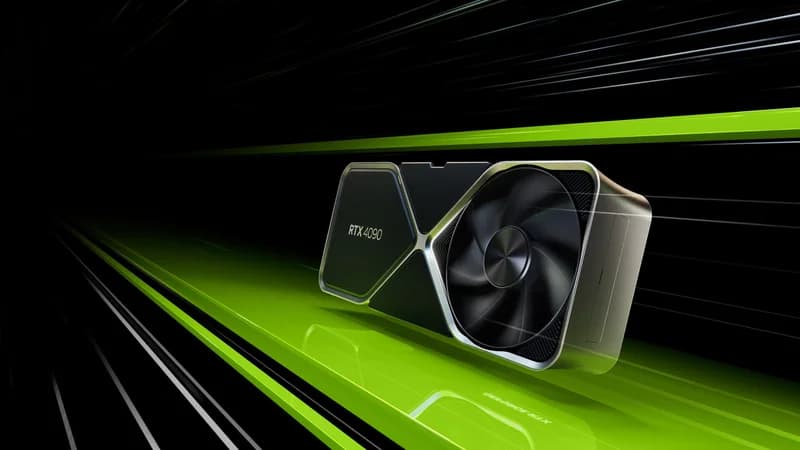
| 32B | 20–24GB | RTX 4090, M4 Pro 24GB | Near GPT-4 level |
| 70B | 35–40GB | RTX 5090 32GB, Mac Studio M4 Max | GPT-4 level |
Picking between the two flagship cards? See our RTX 5090 vs RTX 4090 comparison for the VRAM, speed, and price trade-offs.
Pro Tip
Don't have a powerful GPU? You can still run 7B–8B models on CPU-only mode. It's slower (2–5 tokens/second vs 30+ on GPU), but it works on any computer with 16GB+ RAM. Apple Silicon Macs are especially good at CPU/Metal inference.
The Easiest Path: Ollama
Ollama is the simplest way to run LLMs locally. One install, one command, done.
Install Ollama
Mac:
brew install ollamaLinux:
curl -fsSL https://ollama.ai/install.sh | shWindows: Download the installer from ollama.ai and run it.
Run Your First Model
# Start the Ollama service (Mac/Linux)
ollama serve

# In a new terminal, run a model
ollama run llama3.1

# Chat with it!
>>> What is the best GPU for running AI locally?
That's it. On first run, Ollama downloads the model (~4.7GB for Llama 3.1 8B). After that, it launches in seconds.
Best Models to Start With
Here are our recommended models for different use cases:
| Model | Size | VRAM Needed | Best For |
|---|---|---|---|
| Llama 3.1 8B | 4.7GB | ~5GB | General chat, coding, writing (best starter) |
| Mistral 7B | 4.1GB | ~5GB | Fast inference, good reasoning |
| Qwen 2.5 32B | 19GB | ~22GB | Best quality at 24GB VRAM |
| DeepSeek-R1 14B | 8.1GB | ~10GB | Coding and math |
| Llama 3.1 70B | 40GB | ~42GB | Maximum quality (needs 48GB+ VRAM) |
| Stable Diffusion XL | 6.5GB | ~8GB | Image generation |
Newer releases like Llama 4 Scout 8B and Qwen 3 are also in the Ollama library and download the same way — just swap the model name.
To run any of these:
# Just replace the model name
ollama run mistral
ollama run qwen2.5:32b
ollama run deepseek-r1:14b
Add a Chat Interface (Open WebUI)
Ollama's terminal interface works, but a web UI makes it much nicer. Open WebUI gives you a ChatGPT-like experience running on your hardware.
# Install Docker first, then:
docker run -d -p 3000:8080 \
  --add-host=host.docker.internal:host-gateway \
  -v open-webui:/app/backend/data \
  --name open-webui \
  ghcr.io/open-webui/open-webui:main
Open http://localhost:3000 in your browser. You'll see a familiar chat interface where you can select models, create conversations, and even upload documents for RAG (retrieval-augmented generation).
Running LLMs on Apple Silicon
Apple Silicon Macs are uniquely good at local AI because of unified memory — the CPU and GPU share the same RAM pool, so a Mac with 24GB of unified memory can load a 24GB model without a discrete GPU.
| Mac | Unified Memory | Max Model Size (4-bit) | Performance |
|---|---|---|---|
| MacBook Air M3 (16GB) | 16GB | ~13B | Good for chat |
| Mac Mini M4 Pro (24GB) | 24GB | ~32B | Great all-around |
| Mac Studio M4 Max (128GB) | Up to 128GB | ~70B | Runs most open-source models |
Note
Ollama uses Metal acceleration on Apple Silicon automatically — no extra configuration needed. Install it, run a model, and the GPU cores handle inference.
Performance Tips
- Use quantized models: 4-bit quantization (Q4_K_M) reduces VRAM usage by ~4x with only 5–10% quality loss. This is how you run a 70B model on 24GB VRAM.
- Close other GPU apps: Chrome, video playback, and games all use VRAM. Close them before running large models.
- Use the right model size: Bigger isn't always better. A fast 8B model beats a slow 70B model for quick tasks. Match model size to your task complexity.
- Set context length: Lower context length = less VRAM usage. If you don't need long conversations,
ollama run llama3.1 --num-ctx 2048saves VRAM. - Monitor with nvidia-smi: Run
watch -n 1 nvidia-smi(NVIDIA) or check Activity Monitor (Mac) to track memory usage.
Beyond Chat: What Else Can You Run Locally?
- Image generation: Stable Diffusion, Flux, and DALL-E alternatives via ComfyUI
- Code assistants: Tabby or Continue with local models for VS Code/Cursor
- Voice assistants: Whisper (speech-to-text) + local LLM + Piper (text-to-speech)
- Document Q&A: Upload PDFs and chat with them using Open WebUI's RAG feature
- AI agents: Frameworks like CrewAI and AutoGen work with local Ollama models
The Verdict
The barrier to entry for local AI has never been lower. A $1,399 Mac Mini or a $700 used RTX 3090 build gets you a capable local AI setup. Install Ollama, download a model, and start chatting in under 10 minutes.
For the best experience: pair a 24GB GPU with Ollama and Open WebUI. You'll have a private, unlimited, offline-capable AI assistant that rivals cloud services — with zero monthly fees.