Home AI Server Build Guide 2026: Always-On Local LLM Infrastructure
Build a dedicated home AI server that runs 24/7 — serving LLMs to every device on your network. Hardware picks, networking, storage, remote access, and multi-user setup for families, teams, and tinkerers.
Compute Market Team
Our Top Pick
Last updated: August 30, 2026. All hardware recommendations tested and validated. Networking setup verified across multiple configurations.
Why Build a Home AI Server?
A home AI server is a dedicated machine that runs AI models 24/7 and serves them to every device on your network — your laptop, phone, tablet, even your smart home systems. Instead of running Ollama on your desktop (which ties up your workstation and stops when you shut down), you have always-available AI that any device can access instantly.
Think of it like a home NAS, but for AI inference instead of file storage. You interact with it via web UIs, APIs, and apps — the server does the heavy lifting while your client devices stay light and responsive.
What a Home AI Server Gets You
- Always-on AI: Ask questions from your phone at 2 AM without booting up your desktop
- Multi-device access: Every device on your network gets AI — laptops, tablets, phones, even smart speakers via custom integrations
- Multi-user: Family members or team members each get their own conversations via Open WebUI
- Headless operation: Runs silently in a closet, garage, or utility room — no monitor, keyboard, or mouse needed
- API endpoint: Build custom AI-powered tools, scripts, and automations that call your local models
- Complete privacy: No data leaves your home network. Ever.
Server Build Options by Budget
Budget Server: $1,000 — RTX 3090 Build
This is the same hardware as our AI PC under $1,000, configured for headless server operation.
| Component | Pick | Price |
|---|---|---|
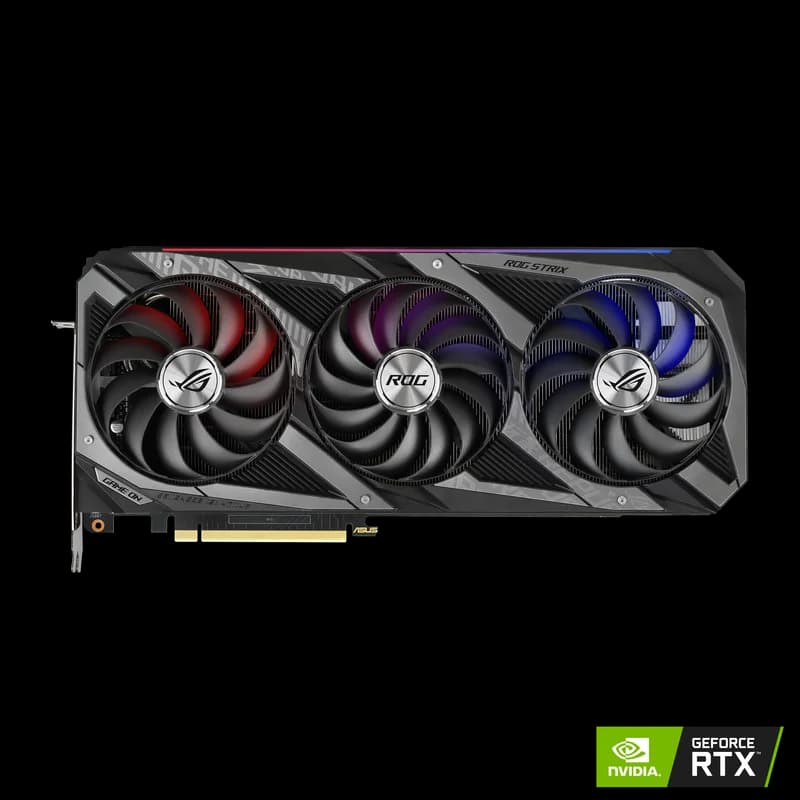
| GPU | RTX 3090 (used) | $850 |
| CPU | AMD Ryzen 5 7600 | $180 |
| Motherboard | ASRock B650M-HDV/M.2 | $90 |
| RAM | 32GB DDR5-5600 | $70 |
| Boot Drive | 500GB NVMe SSD | $35 |
| Model Storage | 2TB NVMe SSD | $100 |
| PSU | 850W 80+ Gold | $100 |
| Case | Any mid-tower with good airflow | $60 |
Total: ~$1,085
Serves: 7B–30B models to multiple devices. ~96 tokens/sec on 8B models (LocalScore, Llama 3.1 8B Q4_K_M).
Mid-Range Server: $2,250 — RTX 4090 Build
Roughly twice the budget for faster generation and more concurrency headroom — see the full RTX 4090 vs RTX 3090 breakdown if you are torn between the two.
| Component | Pick | Price |
|---|---|---|
| GPU | RTX 4090 (used) | $1,899 |
| CPU | AMD Ryzen 7 7700X | $250 |
| Motherboard | ASUS TUF B650-PLUS | $150 |
| RAM | 64GB DDR5-5600 | $140 |
| Boot Drive | 500GB NVMe | $35 |
| Model Storage | Samsung 990 Pro 4TB | $310 |
| PSU | 1000W 80+ Gold | $130 |
| Case | Fractal Design Define 7 (quiet) | $140 |
Total: ~$2,254
Serves: 7B–30B models faster, with more concurrent request headroom. ~120 tokens/sec on 8B models (LocalScore, Llama 3.1 8B Q4_K_M). 64GB RAM enables larger CPU offloading for 70B models like DeepSeek R1 70B.
The "Mac Mini Stack" Alternative: $1,400
A Mac Mini M4 Pro ($1,399) makes an excellent silent home AI server. It runs Ollama natively, is completely quiet, draws only 50W, and fits on a shelf. The trade-offs are speed (slower than NVIDIA) and model size ceiling (24GB unified memory). For a household that primarily uses 7B–13B models, it is the simplest path to always-on AI.
Operating System & Software Setup
OS: Ubuntu Server 24.04 LTS
We recommend Ubuntu Server (no desktop environment) for home AI servers. It is lightweight, headless by default, well-supported by NVIDIA drivers, and the most common platform for AI tools.
- Flash Ubuntu Server 24.04 LTS to a USB drive
- Install to the boot SSD (500GB)
- Enable SSH during installation for remote access
- After first boot, install NVIDIA drivers:
sudo apt install nvidia-driver-560 - Verify GPU:
nvidia-smi
AI Stack: Ollama + Open WebUI
Install Ollama:
curl -fsSL https://ollama.com/install.sh | shConfigure Ollama to listen on all network interfaces (not just localhost):
sudo systemctl edit ollamaAdd:
[Service]
Environment="OLLAMA_HOST=0.0.0.0"
Then restart: sudo systemctl restart ollama
Now any device on your network can access Ollama at http://[server-ip]:11434.
Web UI: Open WebUI
Install Docker and Open WebUI for a ChatGPT-style interface accessible from any browser on your network:
curl -fsSL https://get.docker.com | sh
docker run -d -p 3000:8080 \
  --add-host=host.docker.internal:host-gateway \
  -v open-webui:/app/backend/data \
  --name open-webui \
  --restart always \
  ghcr.io/open-webui/open-webui:main
Access from any device: http://[server-ip]:3000. Create accounts for each family member or team member — each gets their own conversation history, model preferences, and settings.
For a complete Ollama walkthrough, see our Ollama setup guide, or the broader guide to running LLMs locally.
Networking Your AI Server
Networking is what turns a desktop AI PC into a server. The goal: reliable, fast connectivity from every device on your network to the AI server.
Basic Setup: Use Your Existing Network
If your AI server is connected via Ethernet to your router, it is already accessible to every device on your Wi-Fi network. No additional hardware needed. Ollama's API responses are small (text), so even a basic gigabit connection is more than sufficient.
Recommended: Dedicated Network Backbone
For home labs with multiple servers or heavy data transfer (large model downloads, dataset transfers), a managed switch adds reliability and monitoring:
- MikroTik CRS326-24G-2S+RM ($149–$199): 24-port gigabit switch with 2x 10G SFP+ uplinks. Excellent for connecting multiple GPU machines, NAS devices, and workstations.
- Ubiquiti UniFi Dream Machine Pro ($379–$449): All-in-one router, switch, and management platform. Overkill for basic setups but excellent if you want network monitoring, VPN access from outside your home, and professional-grade reliability.
Remote Access (Outside Your Home)
Want to access your AI server from outside your home network? Three options:
- Tailscale (recommended): Free for personal use, creates a secure mesh VPN. Install on your server and phone/laptop — access your AI server from anywhere as if you were on your home network. Zero port forwarding required.
- WireGuard VPN: Self-hosted VPN. More technical setup but no third-party dependency.
- Cloudflare Tunnel: Expose your Open WebUI securely without opening any ports. Free tier available.
Security Warning
Do NOT expose Ollama's API (port 11434) or Open WebUI (port 3000) directly to the internet without authentication. Always use a VPN (Tailscale, WireGuard) or authenticated tunnel (Cloudflare) for remote access. An exposed Ollama instance can be used by anyone to run inference on your hardware.
Model Storage & Management
AI models are large. A dedicated model storage drive prevents your boot drive from filling up.
How Much Storage Do You Need?
| Usage Level | Storage | Holds |
|---|---|---|
| Light (3–5 models) | 500GB | ~8–10 models at Q4 |
| Moderate (10–15 models) | 2TB | ~30–40 models at Q4 |
| Heavy (20+ models + datasets) | 4TB+ | ~60+ models plus datasets |
We recommend a separate 2TB NVMe for model storage. Move Ollama's model directory to this drive:
sudo systemctl edit ollamaAdd:
[Service]
Environment="OLLAMA_MODELS=/mnt/models"
Network-Attached Storage (NAS)
If you already have a NAS or are building a broader home lab, a Synology DS1821+ can centralize model storage, datasets, and backups across multiple machines. The DS1821+ with 10GbE expansion can transfer model files at ~1GB/s — fast enough to load models from the NAS to GPU VRAM without noticeable delay.
Multi-User Setup
One of the best features of a home AI server: multiple people can use it simultaneously.
Open WebUI Multi-User
Open WebUI supports user accounts out of the box. Each user gets:
- Their own conversation history
- Personalized model preferences
- Custom system prompts
- Document upload for RAG (chat with your files)
Concurrent Requests
Ollama handles concurrent requests by queuing them. With a single GPU, one request processes at a time — but response times for 7B models are fast enough (< 1 second to first token) that 2–4 concurrent users feel responsive. For heavier concurrent loads, consider running multiple model instances or adding a second GPU.
Running 24/7: Reliability & Monitoring
Auto-Start on Boot
Ollama installs as a systemd service on Linux and starts automatically on boot. Open WebUI with Docker's --restart always flag also starts automatically. After a power outage or reboot, your AI server comes back online without intervention.
Monitoring
Keep tabs on your server remotely:
- GPU:
nvidia-smi --loop=5to monitor GPU temp, utilization, and VRAM usage - System:
htoporbtopfor CPU, RAM, and disk usage - Ollama:
ollama psshows loaded models and their memory usage - Uptime monitoring: A free Uptime Kuma instance can ping your Ollama API and alert you if the server goes down
Power Consumption & Cost
| State | RTX 3090 Server | RTX 4090 Server | Mac Mini M4 Pro |
|---|---|---|---|
| Idle (OS only) | ~60W | ~65W | ~7W |
| Model loaded, waiting | ~80–100W | ~85–110W | ~10W |
| Active inference | ~400–500W | ~500–600W | ~40–50W |
| Monthly cost (est.)* | $12–$20/month | $14–$24/month | $2–$4/month |
* Estimated at $0.15/kWh assuming 4 hours active inference + 20 hours idle per day.
The Mac Mini's power efficiency is dramatic — roughly 1/6 the electricity cost of a GPU server. If power costs matter (they add up over years), Apple Silicon is the most economical always-on option.
Real-World Use Cases
Family AI Assistant
Every family member accesses the AI from their own device via Open WebUI. Kids use it for homework help, parents for writing and research, everyone for quick answers. Complete privacy — no one's conversations leave the house.
Enterprise / Multi-GPU Server
For teams that need to serve multiple large models concurrently or run fine-tuning alongside inference, the Supermicro SYS-421GE-TNRT supports up to 8 GPUs in a single 4U chassis. Combined with A100 80GB or H100 GPUs, it is the home-lab equivalent of a cloud GPU cluster.
Developer Playground
Use the Ollama API to build AI-powered tools — custom chatbots, code review scripts, document analysis pipelines, smart home integrations. Your local API is identical to the OpenAI format, so any code you write works with cloud models too.
Small Business / Startup
A home AI server for a 2–5 person team costs less per month than a single ChatGPT Team subscription. Each team member gets unlimited AI access with complete data privacy — no corporate data touching third-party servers.
Getting Started
A home AI server is not complex — it is just a PC running Ollama with network access. The hardest part is choosing and buying the hardware. Once assembled, the software setup takes under 30 minutes, and you have always-on, private AI accessible from every device you own.
Start with the budget build:
- Build an AI PC under $1,000 with a used RTX 3090
- Install Ubuntu Server + Ollama + Open WebUI
- Connect to your network and set up Tailscale for remote access
- Pull your favorite models — Llama 4 Scout 8B and Qwen 3 7B are good starting points — and start using AI from every device
You will wonder how you ever relied on cloud AI after experiencing the speed, privacy, and reliability of a local server. No rate limits, no API costs, no data leaving your house. Just always-available AI, running on hardware you own.
Frequently Asked Questions
Can I build a home AI server?
Yes. A home AI server is just a PC with a GPU that runs Ollama 24/7 and serves models to other devices on your network via its API. The hardware is the same as an AI desktop — the difference is that it runs headless (no monitor) and is always available.
How much does a home AI server cost?
A capable home AI server costs $1,000–$3,000 depending on GPU choice. A used RTX 3090 build starts at ~$1,000. An RTX 4090 build runs ~$2,250. Add $150–$400 for networking equipment if you want 10GbE or robust Wi-Fi coverage.
How much electricity does a home AI server use?
At idle (model loaded, waiting for requests), an AI server with an RTX 3090 draws ~80–100W — about $8–$12/month at US electricity rates. Under sustained inference, it draws ~400–500W. Actual costs depend on how often you are running inference versus idle.