How to Build a Local AI Server for Your Business in 2026 (Complete Guide)
Build a local AI server that keeps your business data private, eliminates recurring API costs, and serves your entire team. Complete hardware guide with ROI analysis, step-by-step build instructions, software stack setup (Ollama + Open WebUI + vLLM), security hardening, and scaling path.
Compute Market Team
Our Top Pick
Last updated: May 17, 2026. All hardware pricing, ROI calculations, and software setup instructions verified. Cloud API pricing reflects current published rates.
Why Businesses Are Moving AI On-Premise
A local AI server for your business is a dedicated machine running open-source language models on your own hardware, inside your own network. No data leaves your building. No per-token API charges. No vendor lock-in. For a 10-person team with moderate AI usage, a $2,500-$7,500 local server pays for itself in 3-5 months compared to cloud API costs — and every month after that is pure savings.
According to McKinsey's 2025 Global Survey on AI, 72% of organizations have adopted AI in at least one business function, up from 55% the previous year. But adoption is colliding with three hard realities: data privacy regulations are tightening (HIPAA, SOC 2, GDPR), cloud API costs scale linearly with headcount, and vendor dependence creates strategic risk. Gartner's 2025 forecast projected that by 2026, more than 50% of enterprise AI inference workloads would run on-premise or at the edge — up from under 10% in 2023.
The convergence of powerful open-source models (Llama 3, Mistral, DeepSeek, Qwen) with affordable consumer GPUs has made local AI infrastructure accessible to businesses of every size. You no longer need a data center — a single tower server under a desk can serve your entire team.
The Four Business Drivers for Local AI
- Data privacy and compliance: HIPAA-covered entities, law firms handling privileged communications, financial services under SOC 2 — any business where sensitive data cannot touch third-party servers. A local server keeps every query and response within your network perimeter.
- Cost predictability: Cloud API pricing is per-token and per-request. A busy 10-person team can easily spend $300-$500/month on OpenAI or Anthropic APIs. Local hardware is a one-time capital expense with minimal ongoing electricity costs.
- Low latency: Local inference on a GPU server delivers first-token response in under 500ms — faster than any cloud API round-trip, especially for teams outside major cloud regions.
- No vendor lock-in: Open-source models run on standard hardware. You can switch models, upgrade hardware, or change your software stack without migrating away from a proprietary platform.
If your team is already spending on ChatGPT Team, OpenAI API, or Anthropic API — or if you have compliance requirements that make cloud AI uncomfortable — a local server is the highest-ROI infrastructure investment you can make this year. For a higher-level overview of local AI economics, see our guide: Local AI for Small Business.
ROI Framework: Local AI Server vs. Cloud API Costs
The most important question for any business considering local AI: does the math work? Here is a detailed breakdown comparing cloud API costs to amortized local hardware costs across team sizes.
Cloud API Cost Assumptions
We model typical business usage: each employee makes ~40 AI queries per day (writing assistance, code review, data analysis, research), averaging 1,500 input tokens and 500 output tokens per query. This is moderate usage — heavy users will spend significantly more.
| Provider | Model | Input Cost (per 1M tokens) | Output Cost (per 1M tokens) | Cost per Query |
|---|---|---|---|---|
| OpenAI | GPT-4o | $2.50 | $10.00 | $0.0088 |
| Anthropic | Claude Sonnet 4 | $3.00 | $15.00 | $0.0120 |
| OpenAI | GPT-4o mini | $0.15 | $0.60 | $0.0005 |
Pricing as of May 2026 from published rate cards. Actual costs vary with prompt length and caching.
Monthly Cost Comparison: Cloud vs. Local
| Team Size | Cloud (GPT-4o, 40 queries/day) | Cloud (Claude Sonnet 4, 40 queries/day) | Local Server (amortized 24 months + electricity) | Savings vs GPT-4o |
|---|---|---|---|---|
| 5 users | $264/mo | $360/mo | ~$122/mo ($2.3K build) | 54% |
| 10 users | $528/mo | $720/mo | ~$217/mo ($4.6K build) | 59% |
| 25 users | $1,320/mo | $1,800/mo | ~$341/mo ($7.6K build) | 74% |
Cloud costs: team size x 40 queries/day x 30 days x cost per query. Local costs: hardware cost / 24 months + ~$25-$50/mo electricity. Local models (Llama 3 70B, Qwen 32B) produce output quality competitive with GPT-4o for most business tasks.
The Math in Detail: 10-Person Team
Take the most common scenario — a 10-person team currently spending on cloud APIs:
- Cloud cost: 10 users x 40 queries/day x 30 days = 12,000 queries/month. At GPT-4o rates: 12,000 x $0.0088 = $528/month ($6,336/year).
- Local server cost: ~$4,615 hardware (dual RTX 4090 build) amortized over 24 months = ~$192/month. Add ~$25/month electricity = ~$217/month ($2,604/year).
- Year 1 savings: $6,336 - $2,604 = $3,732. Breakeven at ~5 months.
- Year 2 savings: Hardware is paid off. Ongoing cost is electricity only (~$25/month). Annual savings versus cloud: $6,036.
Key Insight
These calculations assume moderate usage. If your team uses AI heavily (80+ queries/day per person) or uses premium models (GPT-4 Turbo, Claude 3 Opus), cloud costs double or triple — and the local server ROI becomes even more compelling. A local server has zero marginal cost per query — the 10,000th query costs the same as the first.
Hardware Selection Guide
Selecting the right hardware for a business AI server is different from building a personal AI PC. You need to optimize for concurrent throughput (multiple users querying simultaneously), reliability (this is infrastructure, not a hobby project), and upgradeability (your usage will grow).
Sizing that concurrent throughput is its own exercise — for the KV-cache math behind how many users your server can handle, and a seat-count table per GPU, see our team sizing guide.
GPU: The Most Important Decision
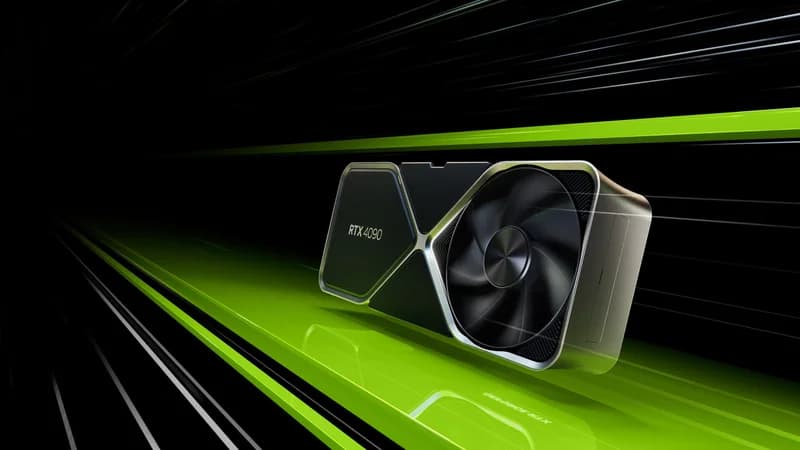
The GPU determines which models you can run, how fast responses generate, and how many concurrent users your server supports. For business servers, we recommend starting with the RTX 4090 as the baseline. For a head-to-head, see RTX 5090 vs RTX 4090.
| GPU | VRAM | 8B Tokens/sec | Best For | Street Price |
|---|---|---|---|---|
| RTX 4090 | 24GB GDDR6X | ~128 t/s | Small teams (5-10 users), 7B-30B models | $1,599 – $1,999 new / ~$1,200–$1,500 used |
| RTX 5090 | 32GB GDDR7 | ~213 t/s | Medium teams (10-20 users), 30B-70B models | $1,999 – $2,199 |
| Dual RTX 4090 | 48GB combined | ~200 t/s (split) | 70B models, high concurrency | ~$2,400–$3,000 used |
| Dual RTX 5090 | 64GB combined | ~340 t/s (split) | Large teams (25+ users), production workloads | $3,998 – $4,398 |
Best for most businesses: Start with a single RTX 4090 if your team is under 10 people. Upgrade to dual GPUs or an RTX 5090 when you hit concurrency limits. For a deeper comparison, see our Best GPU for AI in 2026 guide.
CPU: Less Critical Than You Think
For inference-only servers, the CPU handles tokenization, scheduling, and I/O — none of which are bottlenecks. A modern mid-range CPU is sufficient:
- Minimum: AMD Ryzen 7 7700X (8 cores) or Intel i7-14700K
- Recommended: AMD Ryzen 9 7900X (12 cores) — extra cores help when running multiple services (Ollama, Open WebUI, reverse proxy, monitoring)
- Avoid: Overspending on Threadripper or Xeon unless you plan to run CPU-heavy workloads alongside inference
RAM: More Than You Think
System RAM is used for model loading, KV cache overflow, and running your software stack. For business servers:
- Minimum: 64GB DDR5 — supports one model loaded with comfortable headroom for the OS and services
- Recommended: 128GB DDR5 — allows CPU offloading for models that exceed VRAM, multiple models loaded simultaneously, and generous buffers for concurrent requests
- Overkill but useful: 256GB — needed only if you run 70B+ models with significant CPU offloading
Storage: Fast for Models, Reliable for Data
- Boot + OS: 500GB NVMe SSD (any brand)
- Model storage: Samsung 990 Pro 4TB NVMe — fast sequential reads mean faster model loading. Models are large (8B = ~5GB, 70B = ~40GB at Q4), and you will want multiple models available.
- Data/backup: For teams that use RAG (retrieval-augmented generation) with company documents, a Synology DS1821+ NAS provides centralized, redundant document storage accessible to the AI server.
Networking: Do Not Overlook This
Every user request and response travels over your network. For business servers:
- Minimum: 1GbE Ethernet — sufficient for text-only AI queries for up to 15-20 users. The AI server should be hardwired, never on Wi-Fi.
- Recommended: 10GbE for the server uplink if you are doing RAG with large document sets or serving 20+ concurrent users. A Ubiquiti UniFi Dream Machine Pro provides 10GbE uplinks, VLAN support for network isolation, and enterprise-grade management.
Step-by-Step Build: Three Tiers
Below are three complete builds covering small, medium, and large team requirements. All components are selected for reliability and upgradeability.
Tier 1: Small Team Build — Up to $3,000 (5-10 Users)
| Component | Pick | Price |
|---|---|---|
| GPU | RTX 4090 (used) | ~$1,350 |
| CPU | AMD Ryzen 7 7700X | $250 |
| Motherboard | ASUS TUF B650-PLUS WiFi | $170 |
| RAM | 64GB DDR5-5600 (2x32GB) | $140 |
| Boot Drive | 500GB NVMe SSD | $35 |
| Model Storage | 2TB NVMe SSD | $100 |
| PSU | 1000W 80+ Gold (Corsair RM1000e) | $150 |
| Case | Fractal Design Define 7 (sound dampened) | $140 |
Total: ~$2,335
Serves: 5-10 users running 7B-30B models. ~128 tokens/sec on 8B models. Single-GPU concurrency handles 3-5 simultaneous requests with acceptable latency.
Tier 2: Medium Team Build — Up to $5,000 (10-25 Users)
| Component | Pick | Price |
|---|---|---|
| GPUs | 2x RTX 4090 (used) | ~$2,700 |
| CPU | AMD Ryzen 9 7900X | $350 |
| Motherboard | ASUS ProArt X670E-Creator (dual x16 slots) | $400 |
| RAM | 128GB DDR5-5600 (4x32GB) | $280 |
| Boot Drive | 500GB NVMe SSD | $35 |
| Model Storage | Samsung 990 Pro 4TB | $310 |
| PSU | 1600W 80+ Platinum (EVGA SuperNOVA) | $350 |
| Case | Fractal Design Torrent (full tower, max airflow) | $190 |
Total: ~$4,615
Serves: 10-25 users. 48GB combined VRAM runs 70B models at Q4 quantization across both GPUs. Dual GPUs can also serve two different models simultaneously — e.g., a coding model on GPU 1 and a general assistant on GPU 2.
Dual GPU Notes
Dual-GPU builds require a motherboard with two physical x16 PCIe slots and sufficient physical spacing (at least 3 slots apart for cooling). The 1600W PSU is not optional — two RTX 4090s under load draw ~900W from the GPU alone. Ensure your case has excellent front-to-back airflow; the Fractal Torrent's 180mm front fans are ideal for this.
Tier 3: Enterprise Build — Up to $10,000 (25-50+ Users)
| Component | Pick | Price |
|---|---|---|
| GPUs | 2x RTX 5090 | ~$4,200 |
| CPU | AMD Ryzen 9 7950X | $475 |
| Motherboard | ASUS WS X670E-SAGE (workstation-grade, dual x16) | $650 |
| RAM | 256GB DDR5-5600 (4x64GB) | $550 |
| Boot Drive | 1TB NVMe SSD | $60 |
| Model Storage | 2x Samsung 990 Pro 4TB (RAID 0) | $620 |
| PSU | 1600W 80+ Titanium | $450 |
| Case | Full tower or 4U rackmount | $250 |
| Networking | 10GbE NIC (Intel X710-DA2) | $120 |
| UPS | CyberPower 1500VA | $200 |
Total: ~$7,575 (well under budget — leaving room for a UniFi Dream Machine Pro, NAS, extended warranty, or a third GPU in the future)
Serves: 25-50+ users. 64GB combined VRAM runs 70B models at Q5+ quantization. With vLLM continuous batching, this build serves production-grade throughput. The UPS protects against power interruptions that could corrupt model files or in-flight data.
Assembly Notes
Building a business AI server is mechanically identical to building a desktop PC — the same socket, the same RAM slots, the same PCIe slots. If your IT team has built PCs before, this is the same process with larger GPUs and a beefier PSU. Key points:
- Install CPU and RAM on the motherboard outside the case first
- Mount the motherboard, then install NVMe drives
- Route PSU cables before installing GPUs — clearance gets tight
- Install GPUs last. Use anti-sag brackets — the RTX 4090 and RTX 5090 are heavy cards that will stress the PCIe slot over time without support
- Verify all power connections: GPU power (16-pin or dual 8-pin), CPU power (8-pin), and motherboard power (24-pin)
- First boot: enter BIOS, enable XMP/EXPO for RAM, verify both GPUs are detected
Software Stack
The software stack turns your hardware into a team-accessible AI service. Every tool below is free, open-source, and production-tested. For a complete walkthrough, see our Ollama setup guide.
OS: Ubuntu Server 24.04 LTS
Install Ubuntu Server (no desktop environment) for maximum stability and minimal overhead. Enable SSH during installation for remote management.
# After first boot, install NVIDIA drivers
sudo apt update && sudo apt install -y nvidia-driver-560
sudo reboot
# Verify GPU detection
nvidia-smi
Ollama: Model Serving
Ollama is the inference engine — it loads models into GPU VRAM and serves them via an OpenAI-compatible API. Install and configure for network access:
# Install Ollama
curl -fsSL https://ollama.com/install.sh | sh

# Configure to listen on all interfaces (not just localhost)
sudo systemctl edit ollama
# Add these lines:
# [Service]
# Environment="OLLAMA_HOST=0.0.0.0"
# Environment="OLLAMA_MODELS=/mnt/models"

sudo systemctl restart ollama

# Pull your first business model
ollama pull llama3:70b-instruct-q4_K_M
ollama pull qwen2.5:32b-instruct-q5_K_M
ollama pull deepseek-coder-v2:16b
Open WebUI: Team Interface
Open WebUI gives your team a ChatGPT-style web interface with user accounts, conversation history, and model selection. Each team member logs in with their own account — no shared sessions, full audit trail.
# Install Docker
curl -fsSL https://get.docker.com | sh
sudo usermod -aG docker $USER

# Launch Open WebUI
docker run -d -p 3000:8080 \
  --add-host=host.docker.internal:host-gateway \
  -v open-webui:/app/backend/data \
  --name open-webui \
  --restart always \
  ghcr.io/open-webui/open-webui:main
Access from any browser on your network: http://[server-ip]:3000. The first account you create becomes the admin. Create accounts for each team member, set default models, and configure system prompts per user or per team.
vLLM: High-Throughput Serving (Optional)
For teams with 15+ concurrent users or production API requirements, vLLM replaces Ollama as the inference backend. Its continuous batching engine handles concurrent requests dramatically better than Ollama's sequential queue:
# Install vLLM
pip install vllm

# Serve a model with continuous batching
python -m vllm.entrypoints.openai.api_server \
  --model meta-llama/Llama-3-70B-Instruct \
  --tensor-parallel-size 2 \
  --max-model-len 8192 \
  --gpu-memory-utilization 0.9 \
  --port 8000
vLLM's --tensor-parallel-size 2 automatically splits the model across both GPUs. Open WebUI can connect to vLLM the same way it connects to Ollama — just point it at the vLLM API endpoint.
Reverse Proxy: Access Control
A reverse proxy (Caddy or NGINX) sits in front of Open WebUI and adds TLS encryption, domain-based routing, and rate limiting. Caddy is the simplest option with automatic HTTPS:
# Install Caddy
sudo apt install -y caddy

# /etc/caddy/Caddyfile
# ai.yourcompany.local {
#   reverse_proxy localhost:3000
#   tls internal
# }
For teams that want SSO (Single Sign-On) integration, Open WebUI supports OIDC/OAuth2 out of the box — connect it to your existing Google Workspace, Okta, or Azure AD identity provider.
For more on running models locally, see our guide to running LLMs locally.
Security and Compliance
A business AI server handles sensitive data — customer conversations, internal strategy, proprietary code, financial data. Security is not optional. Here is a hardening checklist that satisfies the core requirements of HIPAA, SOC 2, and GDPR data residency.
Network Isolation
- Dedicated VLAN: Place the AI server on its own network segment. This prevents lateral movement — if another device on your network is compromised, the attacker cannot reach the AI server without crossing VLAN boundaries.
- Firewall rules: Allow inbound traffic only on ports 443 (HTTPS via reverse proxy) and 22 (SSH from management IPs only). Block all other inbound. A UniFi Dream Machine Pro makes VLAN and firewall configuration straightforward.
- No direct internet exposure: The AI server should not have a public IP or open ports. Remote access should go through a VPN (Tailscale, WireGuard) or an authenticated Cloudflare Tunnel.
Authentication and Access Control
- Open WebUI accounts: Every team member gets a named account. Disable guest/anonymous access.
- SSO integration: Connect Open WebUI to your identity provider (Google Workspace, Okta, Azure AD) via OIDC. This gives you centralized user management, automatic deprovisioning when employees leave, and MFA enforcement.
- SSH key-only: Disable password-based SSH on the server. Use SSH keys with Ed25519 encryption. Limit SSH access to a management IP or VLAN.
- API authentication: If you expose the Ollama or vLLM API for programmatic access, place it behind the reverse proxy with API key authentication. Never expose raw inference APIs without authentication.
Audit Logging
- Query logging: Open WebUI logs all conversations by user. For compliance, export these logs to your SIEM or a centralized logging system (e.g., Grafana Loki, ELK stack).
- Access logs: Caddy/NGINX access logs capture every request with timestamp, user agent, and source IP. Retain for 12+ months for SOC 2 compliance.
- System logs: Forward syslog and auth.log to your monitoring system. Set alerts for failed SSH attempts, unauthorized API access, and GPU errors.
Data Protection
- Encryption at rest: Enable LUKS full-disk encryption on both the boot drive and model storage drive. This protects data if the physical server is stolen or a drive is decommissioned.
- Encryption in transit: TLS for all web traffic (handled by Caddy automatically). SSH for all management access.
- Data residency: By definition, a local server keeps all data within your physical premises. Document this for GDPR data processing records and HIPAA BAA requirements.
- Backup encryption: If you back up Open WebUI data or model configurations, encrypt backups before transferring them off-server.
Compliance Note
A local AI server dramatically simplifies compliance because sensitive data never leaves your network. However, local hosting alone does not make you compliant — you still need documented policies, access controls, audit trails, and incident response procedures. Consult your compliance officer or legal team to map these controls to your specific regulatory requirements.
Scaling Path: When and How to Grow
Start small and scale based on actual usage data. Here is the progression most businesses follow:
Stage 1: Single GPU (Month 1-6)
Deploy the Tier 1 build with a single RTX 4090. Monitor usage via Open WebUI admin panel and nvidia-smi. Track peak concurrent users and GPU utilization. If GPU utilization consistently exceeds 70% during business hours, you are approaching the upgrade threshold.
Stage 2: Add a Second GPU (Month 6-12)
When concurrency demands exceed single-GPU capacity, add a second RTX 4090 (or upgrade to an RTX 5090). Two options:
- Model splitting: Run a single large model (70B) across both GPUs with tensor parallelism. This maximizes model quality.
- Model diversity: Run different models on each GPU — a coding model on GPU 0, a general assistant on GPU 1. This maximizes utility.
Stage 3: Multi-Node (Month 12+)
When a single server hits its ceiling (typically 40-50+ concurrent users), deploy a second server and load-balance between them. vLLM and Ollama both support this architecture. Put both servers behind an NGINX load balancer for automatic request distribution.
When Pre-Built Makes More Sense
At the point where you need 4+ GPUs, redundant power supplies, IPMI/BMC remote management, and rack-mount form factors, purpose-built AI servers like the Supermicro SYS-421GE-TNRT (or comparable chassis from Dell and Lambda) become more cost-effective than custom builds. The additional cost includes:
- Validated hardware configurations with guaranteed compatibility
- Out-of-band management (IPMI) for remote power cycling and BIOS access
- Redundant PSUs and hot-swap drive bays
- Vendor support contracts and next-day part replacement
For most businesses, the custom build path (Tier 1 through Tier 3 above) covers 6-24 months of growth. Beyond that, evaluate pre-built options based on your team's growth trajectory and support requirements.
For home and personal server setups that follow a similar pattern, see our Home AI Server Build Guide. For workstation builds that also serve as daily-driver PCs, see How to Build an AI Workstation in 2026.
Frequently Asked Questions
How much does a local AI server cost?
A capable local AI server for business costs between $2,500 and $10,000 depending on team size and model requirements. A ~$2,500 single-GPU build with an RTX 4090 serves 5-10 users running 7B-30B models. A ~$5,000 dual-GPU build handles 10-25 users with 70B models. A ~$7,500–$10,000 enterprise build with dual RTX 5090s supports 25-50+ concurrent users with maximum throughput. Ongoing costs are electricity only — approximately $25-$50/month depending on usage intensity.
Is local AI cheaper than cloud API costs?
Yes, for any team with consistent daily usage. A 10-person team using GPT-4o-class models at 40 queries per user per day spends approximately $528/month on cloud APIs. The same workload on a ~$4,600 local server costs ~$217/month amortized over 24 months (including electricity), saving ~59% in year one. In year two, with hardware paid off, the savings jump to over 90%. The breakeven point for most teams is 3-5 months. The only scenario where cloud APIs win is very light, intermittent usage (under 5 queries per user per day).
What GPU should I get for a business AI server?
For a small team (5-10 users), start with a single RTX 4090 — 24GB VRAM handles 7B-30B models with good throughput at $1,599–$1,999 new (~$1,200–$1,500 used). For medium teams (10-25 users), dual RTX 4090s (~$2,400–$3,000 used) or a single RTX 5090 ($1,999 – $2,199) provides the concurrency and VRAM needed for 70B models. For large teams (25-50+), dual RTX 5090s deliver production-grade throughput. Enterprise GPUs (A100, H100) are only cost-justified if you are serving 50+ users or running continuous high-throughput inference.
How do I secure a local AI server?
The essential steps: isolate the server on a dedicated VLAN, enforce TLS encryption for all API and UI traffic via a reverse proxy (Caddy), require authentication for every user (Open WebUI accounts with SSO/OIDC), enable audit logging for all queries, encrypt storage at rest with LUKS, and restrict SSH to key-based authentication from management IPs only. For HIPAA or SOC 2, add documented access control policies, 12+ month log retention, and incident response procedures. A local server is inherently more secure than cloud AI because sensitive data never leaves your network perimeter.
How many users can a local AI server support?
On a single RTX 4090 with Ollama: 5-10 concurrent users on 7B-13B models with response times under 2 seconds to first token. Ollama queues requests sequentially, so latency increases linearly with concurrency. With vLLM's continuous batching on dual GPUs: 25-40 concurrent users on 8B models at production-grade latency. Beyond 50 concurrent users, deploy a second server with load balancing, or move to enterprise GPUs. The practical limit depends on your model size, acceptable latency, and whether users need real-time streaming or can tolerate 3-5 second response times.
Frequently Asked Questions
How much does a local AI server cost?
A capable local AI server for business costs between $2,500 and $10,000 depending on team size and model requirements. A ~$2,500 single-GPU build with an RTX 4090 serves 5-10 users running 7B-30B models. A ~$5,000 dual-GPU build handles 10-25 users with 70B models. A ~$7,500–$10,000 enterprise build supports 25-50+ concurrent users with maximum throughput.
Is local AI cheaper than cloud API costs?
Yes, for sustained usage. A 10-person team spending $200-$400/month on OpenAI or Anthropic API costs will spend $2,400-$4,800/year. A $5,000 local server amortized over 24 months costs ~$233/month including electricity — saving 50-75% versus cloud APIs while providing unlimited usage with no per-token charges.
What GPU do I need for a business AI server?
For a small team (5-10 users), a single RTX 4090 (24GB VRAM) handles 7B-30B models with good throughput. For medium teams (10-25 users), dual RTX 4090s or a single RTX 5090 (32GB) provides the concurrency headroom needed. For large teams (25-50+), consider dual RTX 5090s or enterprise GPUs like the A100 80GB.
How do I secure a local AI server?
Isolate the server on a dedicated VLAN, enforce TLS encryption for all API and UI traffic, require authentication via reverse proxy (Caddy or NGINX with SSO), enable audit logging for all queries, encrypt storage at rest with LUKS, and restrict SSH access to key-based authentication only. For HIPAA or SOC 2 compliance, add network-level firewall rules and maintain access logs for 12+ months.
How many users can a local AI server support?
A single RTX 4090 server handles 5-10 concurrent users comfortably on 7B-13B models, with response times under 2 seconds to first token. Dual GPUs double concurrency. With vLLM's continuous batching, a dual RTX 5090 server can serve 25-40 concurrent users on 8B models at production-grade latency. Beyond 50 users, consider multi-node setups or enterprise GPUs.