AI Coding Setup: Local LLMs with Cursor, VS Code & Continue.dev (2026)
Set up a fully local AI coding assistant using your own GPU. Cursor, VS Code with Continue.dev, and Ollama — zero cloud, zero API costs, complete privacy. Includes model recommendations by use case.
Compute Market Team
Disclosure: this article includes paid promotion from GMKtec via Amazon Creator Connections. We earn a commission on qualifying purchases.
Our Top Pick
Quick Answer
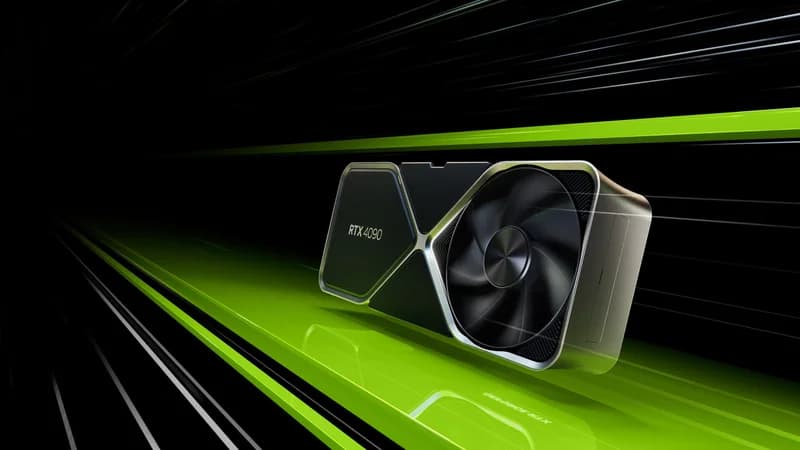
Yes — Cursor and VS Code both connect to a local Ollama instance as a drop-in OpenAI-compatible backend at http://localhost:11434/v1. For the best free local AI coding setup in 2026: install Ollama, pull DeepSeek-Coder-V2 16B (16GB VRAM) or Qwen2.5-Coder 7B (8GB VRAM), then point Cursor or Continue.dev at localhost. Total cost: $0/month, zero code sent to the cloud, no rate limits. An RTX 3090 ($699–$999), RTX 4090 ($1,599–$1,999), or Mac Mini M4 Pro ($1,399) is enough hardware for production-grade completions and chat.
Last updated: June 21, 2026. Tested with Cursor 0.44, Continue.dev 0.9, and Ollama 0.6.x on Ubuntu 24.04 and macOS 15.
Why Local AI Coding?
Cloud AI coding tools cost $20–$40/month per seat, send your code to remote servers, and throttle you with rate limits when you need them most. A local AI coding setup costs $0/month after hardware, sends zero code to any cloud, and has no rate limits.
In 2026, local coding models are genuinely good. DeepSeek-Coder-V2 and Qwen2.5-Coder match or exceed GPT-4-level coding quality on many benchmarks when running locally at the right model size. This guide sets up a complete local AI coding environment from scratch.
What You Need
| Component | What It Does | Cost |
|---|---|---|
| GPU with 8GB+ VRAM | Runs the AI model locally | Hardware you (may) already own |
| Ollama | Runs and serves local models via API | Free |
| IDE plugin | Connects your editor to Ollama | Free (or Cursor's base tier) |
For hardware recommendations, see our GPU buyer's guide. The minimum for a useful experience is an 8GB GPU like the RTX 3060. For the best local coding assistant, an RTX 4090 or RTX 3090 running a 32B model is compelling (compare the two for AI). Even a Mac Mini M4 Pro runs 7B–14B coding models silently and well, and a budget mini PC like the GMKtec M6 Ultra ($429–$549) runs 7B coders for an always-on assistant.
Step 1: Install Ollama and Pull a Coding Model
Install Ollama (full guide: Ollama setup guide):
# Linux
curl -fsSL https://ollama.com/install.sh | sh

# macOS
brew install ollama
Pull a coding model. Here are our recommendations by VRAM:
# 8GB VRAM — fast 7B coder
ollama pull qwen2.5-coder:7b

# 16GB VRAM — best mid-range coding model
ollama pull deepseek-coder-v2:16b

# 24GB VRAM — best single-GPU coding experience
ollama pull qwen2.5-coder:32b

# Any VRAM — reasoning-focused coding (slower but smarter)
ollama pull deepseek-r1:14b
Verify the model runs:
ollama run qwen2.5-coder:7b "Write a Python function to binary search a sorted list"Best Local Coding Models in 2026
| Model | VRAM | Speed | Best For | Ollama Command |
|---|---|---|---|---|
| Qwen2.5-Coder 7B | 5GB | ~90 t/s (4090) | Fast completion, syntax help | ollama pull qwen2.5-coder:7b |
| DeepSeek-Coder-V2 16B | 10GB | ~50 t/s (4090) | Code generation, multi-file | ollama pull deepseek-coder-v2:16b |
| Qwen2.5-Coder 32B | 20GB | ~35 t/s (4090) | Best single-GPU coding quality | ollama pull qwen2.5-coder:32b |
| DeepSeek-R1 14B | 9GB | ~35 t/s | Debugging, reasoning through bugs | ollama pull deepseek-r1:14b |
| CodeLlama 34B | 22GB | ~30 t/s | Code completion, fill-in-middle | ollama pull codellama:34b |
Option A: Cursor with Local Ollama
Cursor is the most popular AI-native code editor. It ships with Claude and GPT-4 integration built in, but also supports custom API endpoints — which means you can point it at your local Ollama instance.
Setup
- Download and install Cursor (free tier available)
- Open Settings → Models
- Under "OpenAI API Key", enter:
ollama - Under "OpenAI Base URL", enter:
http://localhost:11434/v1 - Add your model name (e.g.,
qwen2.5-coder:32b) to the model list - Select your local model from the model picker in the chat panel
You now have Cursor's editing interface — inline edits, multi-file context, the agent mode — running against your local GPU instead of OpenAI's servers.
What Works (and What Doesn't)
Works fully locally: Chat panel, inline edits (Cmd+K), code generation, refactoring requests.
Still uses cloud (Cursor's servers): Cursor's proprietary indexing and codebase search features. If your code is sensitive and you want zero cloud exposure, use Continue.dev instead.
Option B: VS Code + Continue.dev (Fully Local)
Continue.dev is an open-source VS Code extension designed specifically for local LLM integration. Everything runs locally — no telemetry, no cloud, no code leaving your machine.
Setup
- Install the Continue extension in VS Code
- Click the Continue icon in the sidebar
- Open
~/.continue/config.jsonand add:
{
  "models": [
    {
      "title": "Qwen2.5-Coder 32B (Local)",
      "provider": "ollama",
      "model": "qwen2.5-coder:32b",
      "apiBase": "http://localhost:11434"
    },
    {
      "title": "DeepSeek-R1 14B (Reasoning)",
      "provider": "ollama",
      "model": "deepseek-r1:14b",
      "apiBase": "http://localhost:11434"
    }
  ],
  "tabAutocompleteModel": {
    "title": "Qwen2.5-Coder 7B (Autocomplete)",
    "provider": "ollama",
    "model": "qwen2.5-coder:7b",
    "apiBase": "http://localhost:11434"
  }
}
This config sets up two chat models (a capable coder and a reasoning model for debugging) plus a fast autocomplete model. The 7B model handles real-time completion without noticeable latency.
Key Features
- Inline autocomplete: Press Tab for AI-suggested completions as you type
- Chat with your code: Cmd+L to open chat with selected code as context
- Edit mode: Cmd+I to request inline edits on selected code
- @-mentions: Reference files, docs, and functions directly in the chat
- Zero telemetry: Everything stays local, configurable in settings
Speed Tip: Two Models for Two Jobs
Use a fast 7B model for real-time autocomplete (requires sub-100ms response for it to feel natural) and a larger 32B model for chat and code generation. The 7B model handles completions at 80–100 tokens/sec on an RTX 4090 — fast enough that suggestions appear as you type. Switch to the 32B for complex refactoring requests where quality matters more than speed.
Access Your AI Coding Assistant From Any Device
If you have a desktop AI server (see our home AI server guide), you can access it from your laptop anywhere on your network:
On the server, configure Ollama to listen on all interfaces:
# Edit Ollama service
sudo systemctl edit ollama
# Add: Environment="OLLAMA_HOST=0.0.0.0"
sudo systemctl restart ollama
In Continue's config on your laptop, change apiBase:
"apiBase": "http://[server-ip]:11434"Your laptop's keyboard and monitor drive the coding session, while the heavy model inference runs on your desktop GPU. The laptop stays cool and fast; the GPU server does the work.
Real-World Performance Comparison
| Setup | Autocomplete Speed | Code Gen Quality | Monthly Cost | Privacy |
|---|---|---|---|---|
| GitHub Copilot (cloud) | Fast | Good | $19/month | Code sent to Microsoft |
| Cursor Pro (cloud) | Fast | Excellent (GPT-4) | $20/month | Code sent to Cursor/OpenAI |
| Local 7B (RTX 3060) | Fast (~80 t/s) | Decent | $0/month | Fully local |
| Local 16B (RTX 4060 Ti) | Medium (~45 t/s) | Good | $0/month | Fully local |
| Local 32B (RTX 4090) | Medium (~35 t/s) | Excellent | $0/month | Fully local |
For developers working on proprietary code, the privacy argument alone often justifies local setup. For freelancers and solo developers, the cost savings compound fast — $20/month is $240/year, every year, indefinitely.
Getting Started
The fastest path to a working local AI coding setup:
- Install Ollama:
curl -fsSL https://ollama.com/install.sh | sh - Pull a coding model:
ollama pull qwen2.5-coder:7b(or larger for better quality) - Install Continue.dev in VS Code and point it at
localhost:11434 - Open a file you are working on and press Cmd+L to start chatting with your code
The whole setup takes under 10 minutes. Once it is running, you will never go back to cloud-only coding tools for anything proprietary or sensitive — and you will appreciate that the bill stays at $0.
Frequently Asked Questions
Can you use Cursor with a local LLM?
Yes. Cursor supports custom OpenAI-compatible API endpoints. You can point it to a local Ollama instance running on http://localhost:11434/v1 and use any locally-running model as your coding assistant — no API keys, no usage costs.
What is the best local model for coding?
For code generation and completion: DeepSeek-Coder-V2 16B (if you have 16GB+ VRAM) or Qwen2.5-Coder 7B (for 8GB GPUs). For debugging and explanation: DeepSeek R1 14B–32B excels at reasoning through code problems. All are available via Ollama.
How much VRAM do I need for AI coding?
8GB VRAM handles 7B coding models at interactive speeds (~50 tokens/sec). 16GB handles the best 14B–16B coding models. 24GB lets you run 32B+ models for the most capable local coding assistant experience.